

How hard do you think to turn a white abstract background picture into black and create a dramatic effect?
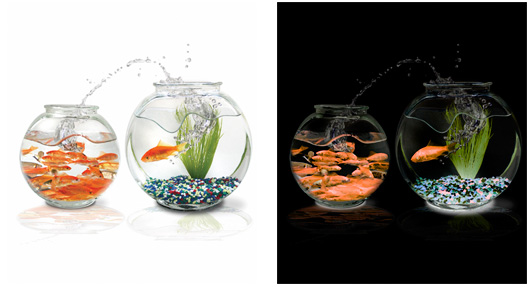
What you need to do is just three steps;
- Create an empty layer on top of your original image;
- Go to Image->Apply Image
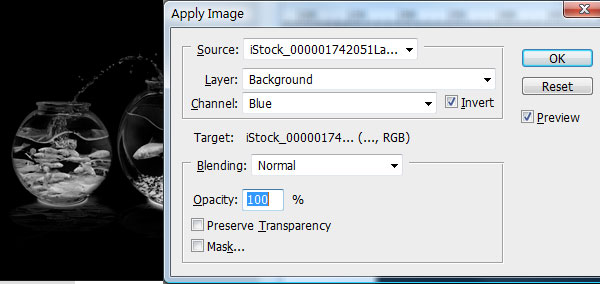

change the Layer setting be “background” which means we would like to use background as our template;
change Channel setting to be “green” and check the invert Checkbox beside;
Usually, red channel got most bright color and blue channel have the darkest. So when you invert that, the red channel got darkest effect. You can choose whatever applies to our image to achieve the best. Here, we are using invert green channel. Now, we will get a black and white picture; - Third step, add color to that picture but still keep that black style; we just need to duplicate the background(your original image), put it on top of our black and white layer, and change its mode to be “color”. The color of our original picture is added on our new black background.
Spread the love
can’t figure this tutorial out.. its kinda confusing the way its written..
Nice, thanks!
Could you figure it out? Because I dont get it with step 3…
In your photoshop, layer panel… you should see a dropdown beside the opacity dropdown… here you can select your layer style. The “color” is the second last option in that dropdown…
Yyyyyyyes. Thank you!!
Hello there, i was testing out, bloody brilliant, but the last part (step three) is highly confusing. Could you say it again, but in dummie was so i can understand it.
Thanks
Didn’t seem to work. Changing the duplicated layer to “color” mode didn’t do anything at all.
Also, based on your example images, couldn’t you just invert the original and then change the hue?
Your way is much better, although I added an extra step. Some of my original image was black already, and inverting made them white. I simply duplicated the original then changed the Blend Mode to Darken so that it would put the black back in without darkening the image like a Multiply would. Turned out perfectly. Your way was much better, so thank you vertigoelectric!
Take a look at this picture: http://snaps.vertigofx.com/002/snap0323.png
All I did was take the example image above, drag it directly from this page into Photoshop, invert it, and then adjust the hue by +180. It is a tiny bit brighter than the original, but surely that could easily be adjusted if necessary.
All of those other steps seem confusing and unnecessary.
Absolutely amazing.. huge creative effect .. great work!!!!
Didnt work for me :(